Print resolution is one of the most commonly misunderstood specifications in large format print. Clients regularly request 300 dpi for a 10-metre hoarding panel, or provide artwork at 72 dpi for a close-viewing exhibition graphic. Both are wrong one wastes money on invisible detail, the other produces visibly soft output. Understanding how resolution works in large format, and how viewing distance changes the equation, helps you specify correctly and avoid both problems.
We handle resolution and artwork preparation as part of every large format print project. This guide explains the relationship between file resolution, print resolution, viewing distance and perceived sharpness in practical terms rather than theoretical ones.
Key takeaways
- File resolution (the dpi of your artwork file) and print resolution (the dpi your printer outputs) are related but not the same and neither determines perceived quality on its own
- Viewing distance is the critical variable: a billboard viewed from 30 metres needs far less file resolution than a pop-up display viewed from 1 metre
- For most large format applications, 100-150 dpi at output size is the practical sweet spot sufficient for sharp output at typical viewing distances without inflating file sizes unnecessarily
- Print resolution of 720 dpi is standard for large format inkjet; 1200 dpi or higher is used for close-viewing photographic work and fine art reproduction
- Upsampling low-resolution artwork (increasing the dpi in Photoshop) does not add real detail it makes the file bigger without making the print sharper
- Vector artwork (logos, text, graphic elements) is resolution-independent and should always be supplied as vectors rather than rasterised images
File Resolution vs Print Resolution
File resolution is the pixel density of your artwork file, measured in pixels per inch (ppi) or dots per inch (dpi) at the intended output size. A 3,000 x 1,500 pixel image printed at 1 metre wide has a file resolution of approximately 76 dpi at output size. The same image printed at 3 metres wide has a file resolution of approximately 25 dpi.
Print resolution is the output resolution of the printing device the number of ink dots it places per inch on the substrate. Large format inkjet printers typically output at 360 dpi, 720 dpi or 1200 dpi depending on the quality setting. UV flatbed printers commonly print at 600 dpi or 1200 dpi.
The printer’s output resolution is always higher than the file resolution because each pixel in the artwork is reproduced using multiple ink dots in different colours. A 150 dpi artwork file printed at 720 dpi means each pixel is represented by approximately 4.8 x 4.8 ink dots (23 dots per pixel), which is how the printer renders colour gradients and fine tonal transitions.
Sending a 300 dpi file to a 720 dpi printer does not produce a 300 dpi print it produces a 720 dpi print from a 300 dpi source. The extra file resolution beyond what the printer can meaningfully utilise simply increases file size, processing time and RIP time without improving output quality.
How Viewing Distance Changes Everything
The human eye has a resolving power of approximately 1 arc minute under normal conditions, which translates to the ability to distinguish detail at approximately 300 dpi at a viewing distance of 25cm. This is why 300 dpi is the standard for litho print viewed at reading distance.
As viewing distance increases, the eye’s ability to resolve fine detail decreases proportionally. At 1 metre, the eye resolves approximately 75 dpi. At 3 metres, approximately 25 dpi. At 10 metres, approximately 8 dpi. This means that detail printed at resolutions above these thresholds is invisible to the viewer at those distances it is technically present in the print but cannot be perceived.
This is why a motorway billboard printed at 10-15 dpi from a file supplied at 25 dpi looks perfectly sharp from a car travelling at 70 mph. And it is why printing the same billboard at 300 dpi would be a spectacularly pointless waste of ink and production time.
Practical Resolution Guidelines by Application
Based on typical viewing distances for common large format applications, these are the file resolutions we recommend at output size:
Close viewing (under 1 metre): 150-200 dpi. Applies to exhibition panel graphics, retail counter displays, information boards, gallery prints and any graphic where the viewer will stand within arm’s reach. This is also the resolution range for POS display graphics viewed at till-point proximity.
Standard viewing (1-3 metres): 100-150 dpi. Applies to wall graphics, window displays, shell scheme exhibition panels, interior signage and most retail graphics. This covers the majority of large format work and is the resolution range we specify most frequently.
Medium distance (3-10 metres): 50-100 dpi. Applies to external signage, hoarding panels, building wraps, high-level banners and event graphics viewed from across a room or across a road.
Long distance (10+ metres): 25-50 dpi. Applies to motorway billboards, large-scale building wraps, stadium graphics and any application viewed from significant distance. Files at this resolution are correspondingly small, which allows single-file artwork for very large formats without the processing problems associated with multi-gigabyte files.
What Happens When Resolution Is Too Low
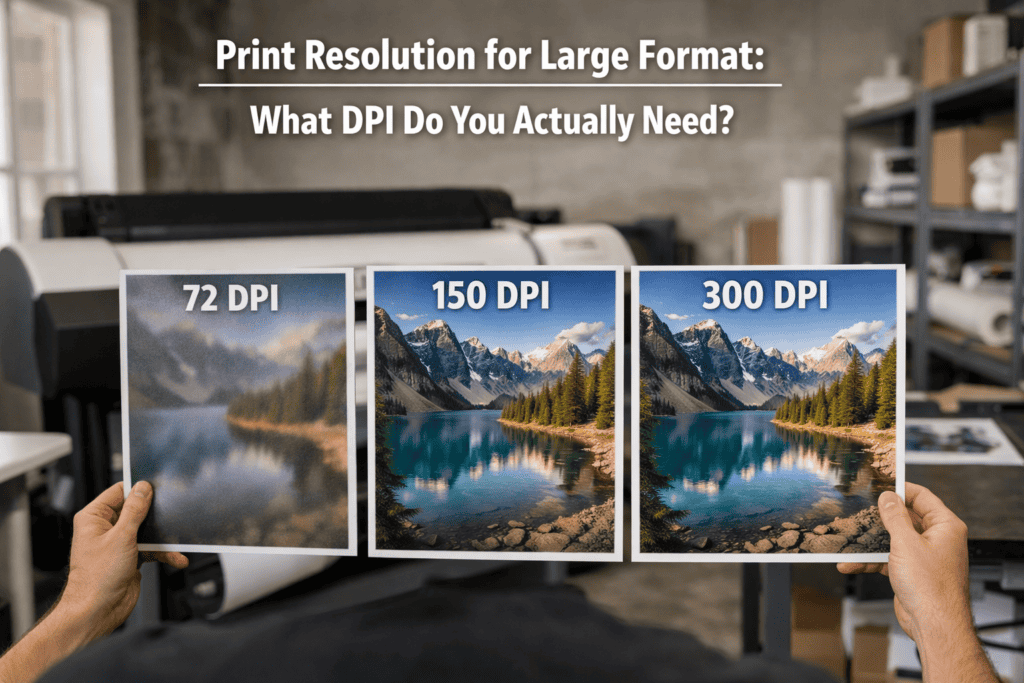
When file resolution is below the perceptible threshold for the viewing distance, the print appears soft. Edges lose definition, text becomes fuzzy, and photographic detail dissolves into visible pixel blocks. The closer the viewing distance, the more obvious the softness.
There is a practical test: view the artwork file at 100% zoom on screen. If the image looks sharp at this zoom level, it will look sharp printed at 100% size from typical viewing distance. If it looks pixelated on screen, it will look pixelated in print. This is an approximation (screen pixel density varies), but it catches gross resolution problems before they reach production.
The most common source of low-resolution artwork is images downloaded from websites. Web images are typically 72 dpi and 1000-2000 pixels wide suitable for a screen display but producing a print only 150-350mm wide at acceptable quality. Scaling this to a 3-metre wall graphic produces a file resolution of approximately 6-12 dpi at output size, which is visibly poor from any viewing distance under 20 metres.
What Happens When Resolution Is Too High
Excessive resolution does not damage print quality, but it creates practical problems. A 300 dpi file for a 5-metre by 3-metre graphic is approximately 23,600 x 14,170 pixels around 1 billion pixels. Depending on colour depth and layer count, this file can be 2-10 GB, which creates slow processing, difficult file transfer, extended RIP times, and potential software crashes.
There is no benefit to this overhead. The printer cannot reproduce the extra detail, and the viewer cannot see it. Reducing the file to 150 dpi at output size halves the pixel count in each dimension (quartering the total pixel count), producing a file that is roughly one quarter the size with identical perceived print quality.
Vector vs Raster: Resolution-Independent Elements
Vector artwork (created in Adobe Illustrator, saved as .ai or .eps) is described mathematically rather than as a grid of pixels. This means it is resolution-independent it can be scaled to any size without loss of quality. Logos, text, graphic shapes, line work and solid colour elements should always be supplied as vectors.
Raster artwork (created in Adobe Photoshop, saved as .tif or .psd) is pixel-based and resolution-dependent. Photographs, textured backgrounds and complex colour blends are inherently raster. These are the elements where file resolution matters.
The ideal artwork file for large format is a combination: vector elements (sharp at any scale) placed over raster elements (at appropriate resolution for the viewing distance). InDesign and Illustrator handle this combination natively, embedding raster images within a vector document structure.
How We Handle Resolution in Production
We check every file during pre-press and flag resolution issues before production. If the file resolution is below the threshold for the intended viewing distance, we advise the client and discuss options: sourcing a higher-resolution image, adjusting the viewing distance assumption (a graphic that was planned for a 1-metre viewing distance might actually be viewed from 3 metres in practice), or applying controlled upsampling using AI-enhanced tools that can add meaningful detail to low-resolution sources (though this has limits and is not a substitute for a properly resolved source file).
We never silently print a low-resolution file and hope the client does not notice. Resolution is part of the quality specification, and it is managed with the same rigour as colour accuracy and substrate selection.
If you are unsure about your artwork resolution, send us your files for a free artwork check and we will confirm whether they are suitable for your intended application.
Frequently Asked Questions
Do I need 300 dpi for large format print?
Almost never. 300 dpi is the standard for litho print viewed at reading distance (25cm). Large format graphics are viewed from much further away, so lower resolutions are appropriate. 100-150 dpi at output size is the practical standard for most applications. Only close-viewing fine art and photographic prints benefit from resolutions above 150 dpi.
Can you improve the resolution of a low-quality image?
To a limited degree. AI-enhanced upsampling tools can add meaningful detail to moderately low-resolution images, but they cannot create detail that was never captured. An image at 30 dpi can be improved to look acceptable at 50-60 dpi, but it will never match the quality of an image captured at 150 dpi. The best solution is always to source the highest-resolution original available.
What file format should I supply for large format?
PDF (with fonts outlined and images embedded) is the preferred format. TIFF files are suitable for photographic work. EPS or AI files for vector-only artwork. Avoid supplying JPEG files for production the lossy compression introduces artefacts that are visible in large format print, particularly in solid colour areas and gradients.
Why does my file look pixelated when I zoom in?
If you are viewing the file at 100% zoom and it appears pixelated, the file resolution is insufficient for printing at that size. If you are zooming beyond 100%, the pixelation is an artefact of the zoom level and does not represent how the print will appear. Always assess at 100% zoom for a realistic impression.
Does print resolution affect colour accuracy?
Indirectly. Higher print resolution (1200 dpi vs 720 dpi) allows the printer to render finer colour transitions and smoother gradients, which can improve perceived colour accuracy in photographic and tonal work. For solid colours and graphics, the difference between 720 dpi and 1200 dpi is typically imperceptible.
What happens if I supply artwork at the wrong size?
We scale it to the correct output size during pre-press. If the artwork is supplied smaller than output size, scaling up reduces the effective resolution. If it is supplied larger, scaling down increases the effective resolution. The critical factor is the resolution at the final output size, not the resolution at the supplied size.